SegRef3D
SegRef3D Lite Basic Tutorial
This tutorial uses the built-in Apple Demo - Kanzi 84 to define three structures, segment them with SAM2 on Google Colab, return the results to SegRef3D Lite, refine the masks, preview them in 3D, and save the work.
| Object | Structure in this tutorial |
|---|---|
| Obj 1 | Apple (whole fruit) |
| Obj 2 | Stem |
| Obj 3 | Core |
You do not need to install Python or desktop software. You upload a job ZIP to your own Google Colab runtime only when you run AI segmentation.
Migrating an old segmentation dataset: Legacy SegRef3D SVG masks can be imported and converted to the current editable label-mask format. Load the original DICOM, choose Open → Masks / Project ZIP → PNG / SVG Folder (or ZIP), review the slice mapping, check the restored objects, then export Training Data ZIP. SVG is a slice mask; the loaded source supplies 3D geometry. Old DICOM filename order can differ from current canonical order. Dimensions must match, and unsupported SVG content is rejected. See the migration guide.
1. Open SegRef3D Lite
SegRef3D Lite lets you inspect images, prepare AI segmentation, refine masks, reconstruct in 3D, and export data in a browser. Normal display, editing, and export operations are processed on your device.
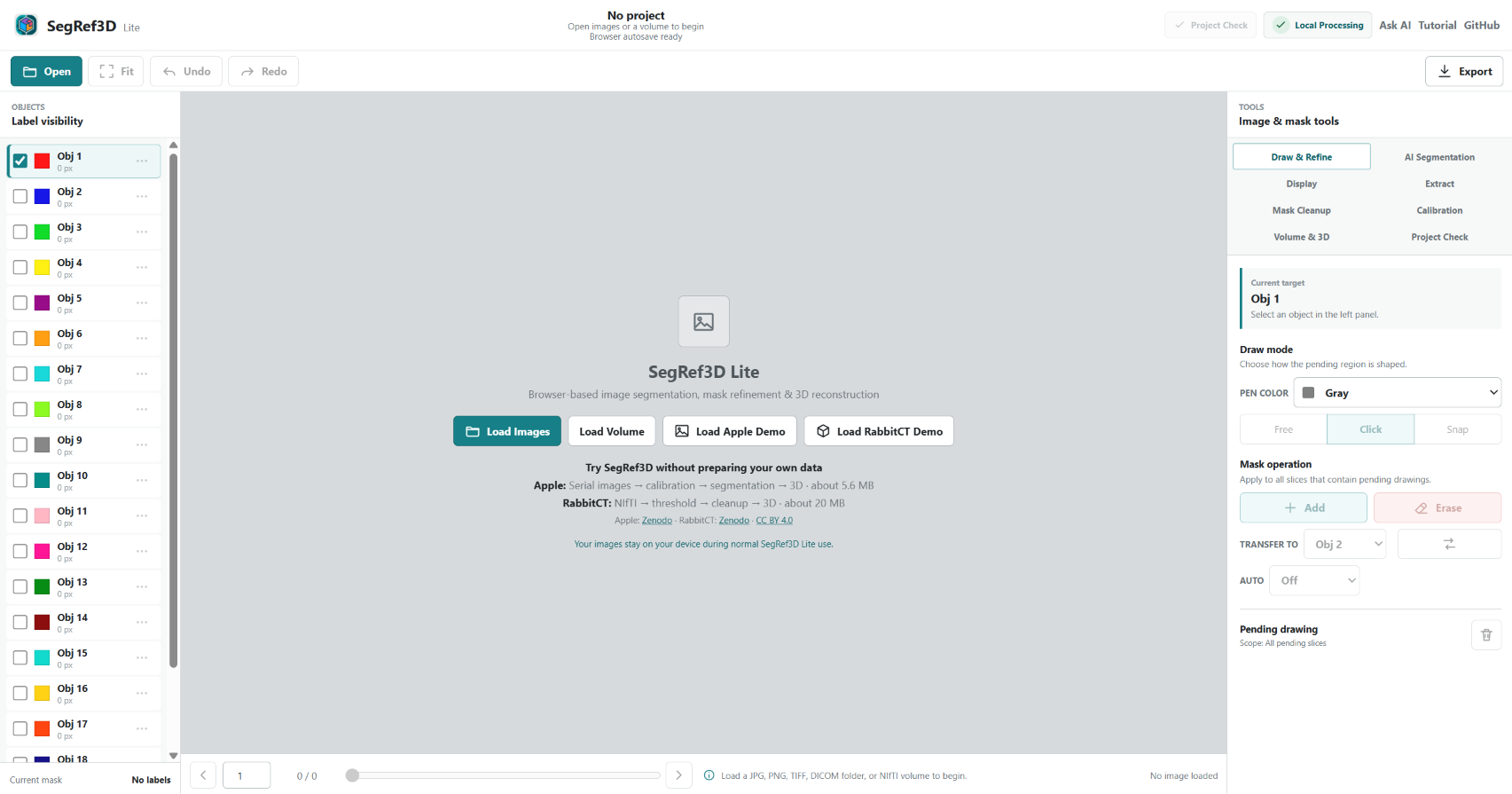
2. Open the Apple Demo and navigate the slices
Select Load Apple Demo in the center. There is no separate selection screen; the 20-image Apple Demo - Kanzi 84 sequence loads directly.
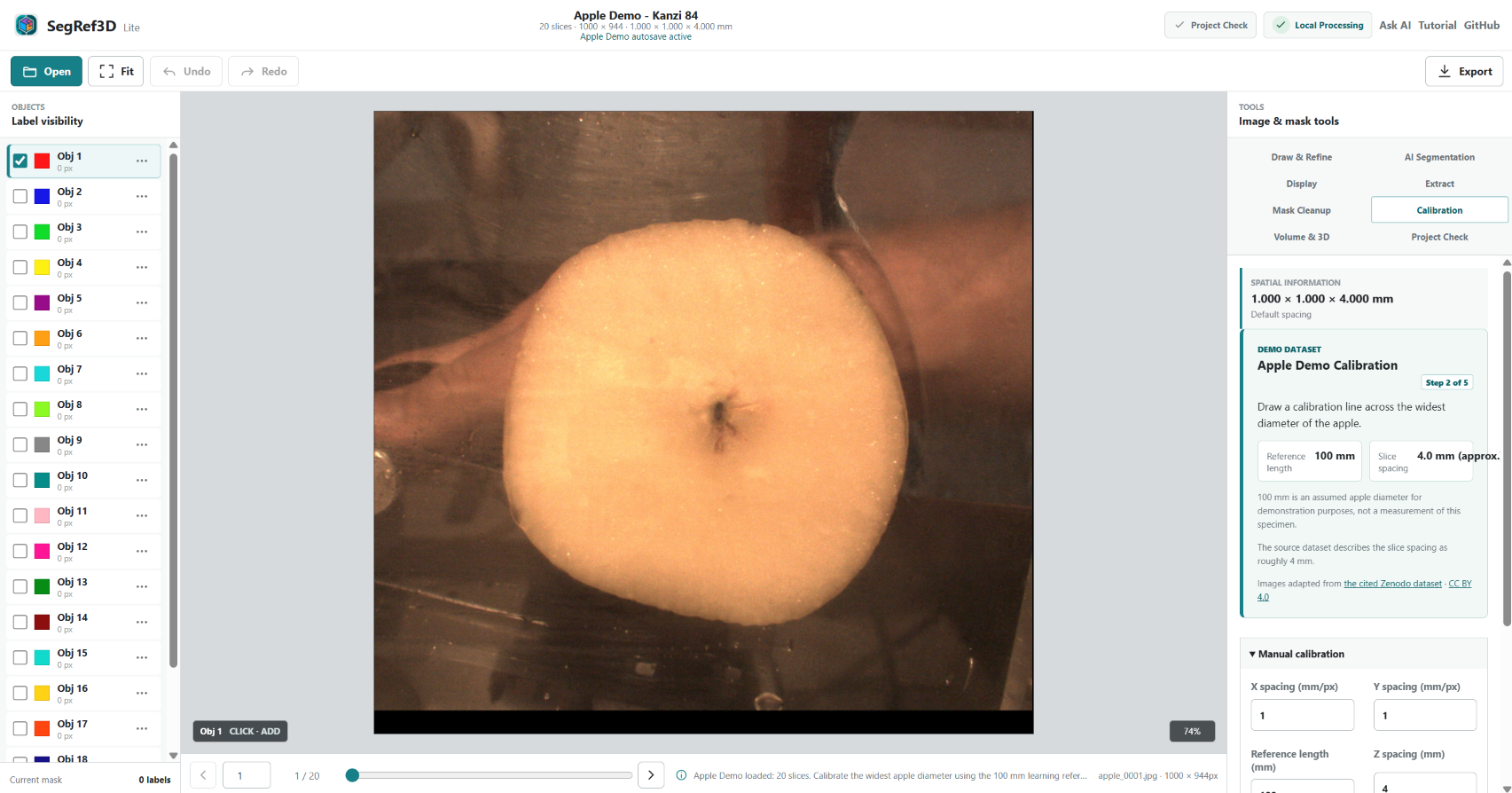
Use a plain mouse wheel over the canvas to move through the slices. You can also use the slider or Previous/Next buttons below the canvas. Inspect several slices and find frames where the Apple, Stem, and Core are clear.
3. Calibration
After the Apple Demo loads, Calibration opens in Image & mask tools with these presets:
Reference length: 100 mmZ spacing: 4.0 mm (approx.)
You do not need to re-enter the values. Select Draw Reference Line, then click two points across the widest apple diameter. A guide line follows the pointer after the first point.
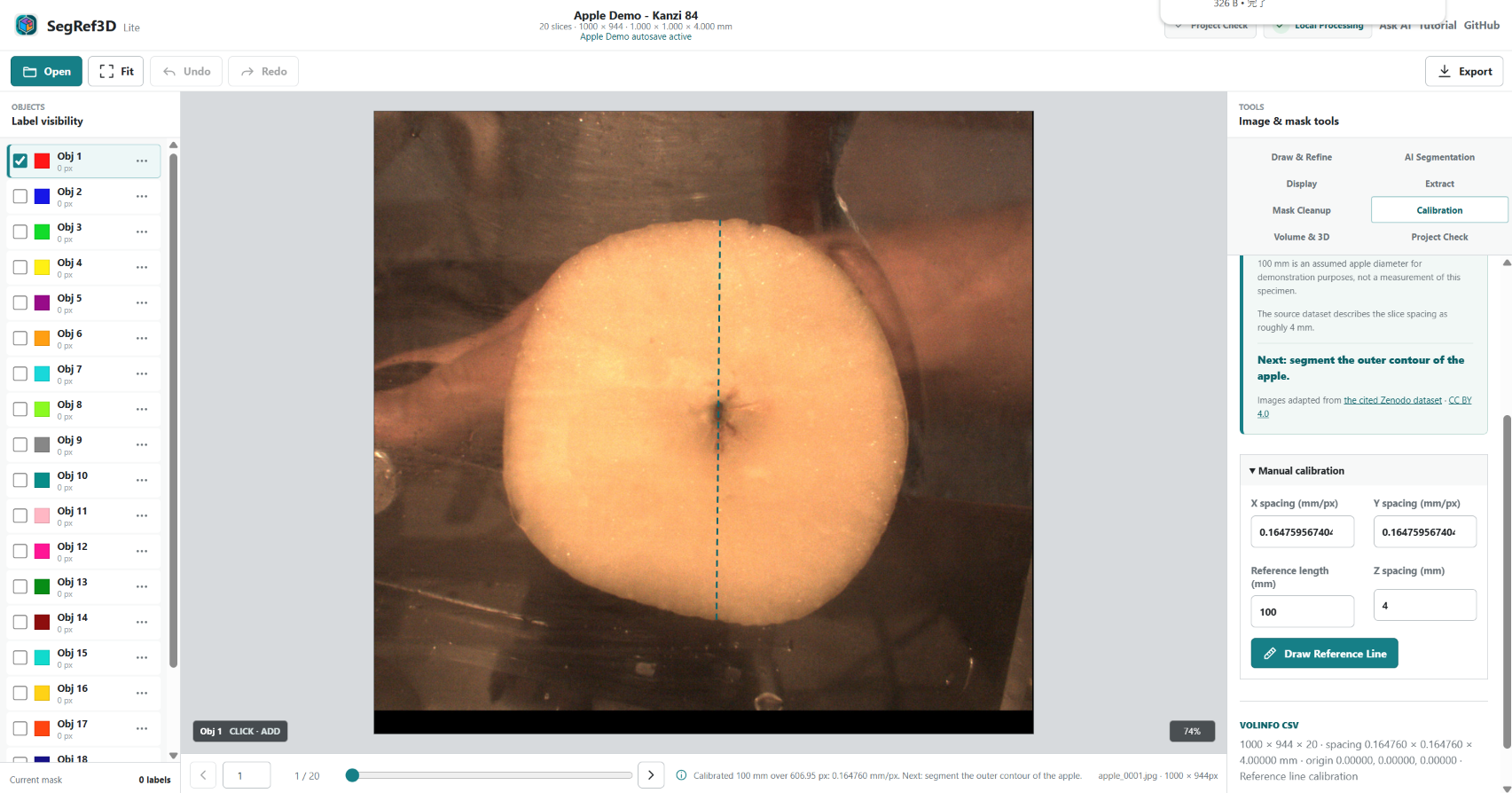
The resulting X/Y spacing and Z spacing determine physical dimensions in volume measurements, NIfTI, 3D Preview, and STL.
About the demo values: 100 mm is an assumed apple diameter for learning the calibration workflow, not a measurement of this specimen. The source dataset describes the slice spacing as roughly 4 mm.
4. Open AI Tracking Setup
Select SegAnything in the top bar to open the workflow.
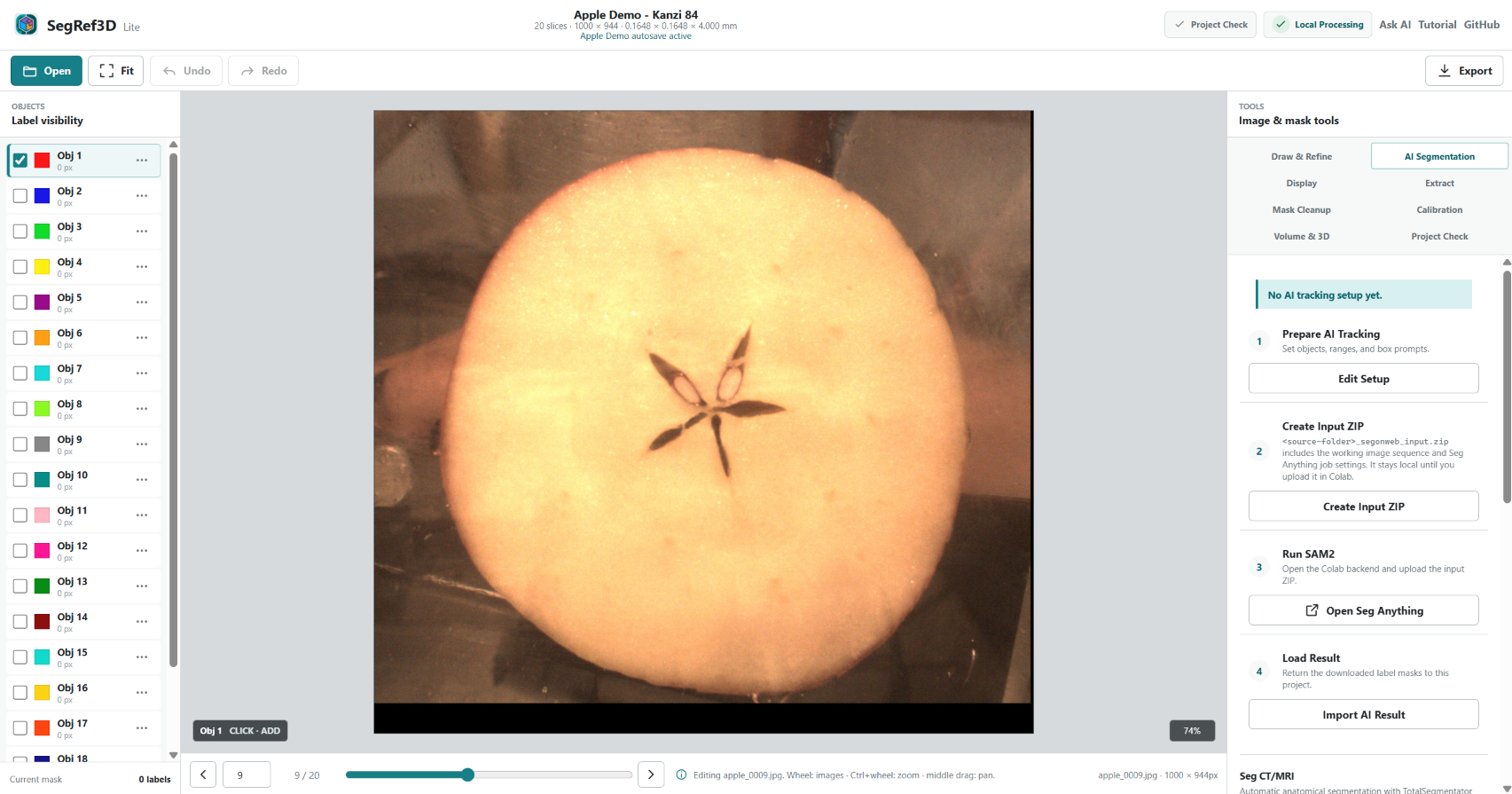
Select Edit Setup to open AI Tracking Setup. This is where you register object names, Tracking Ranges, and Box Prompts.
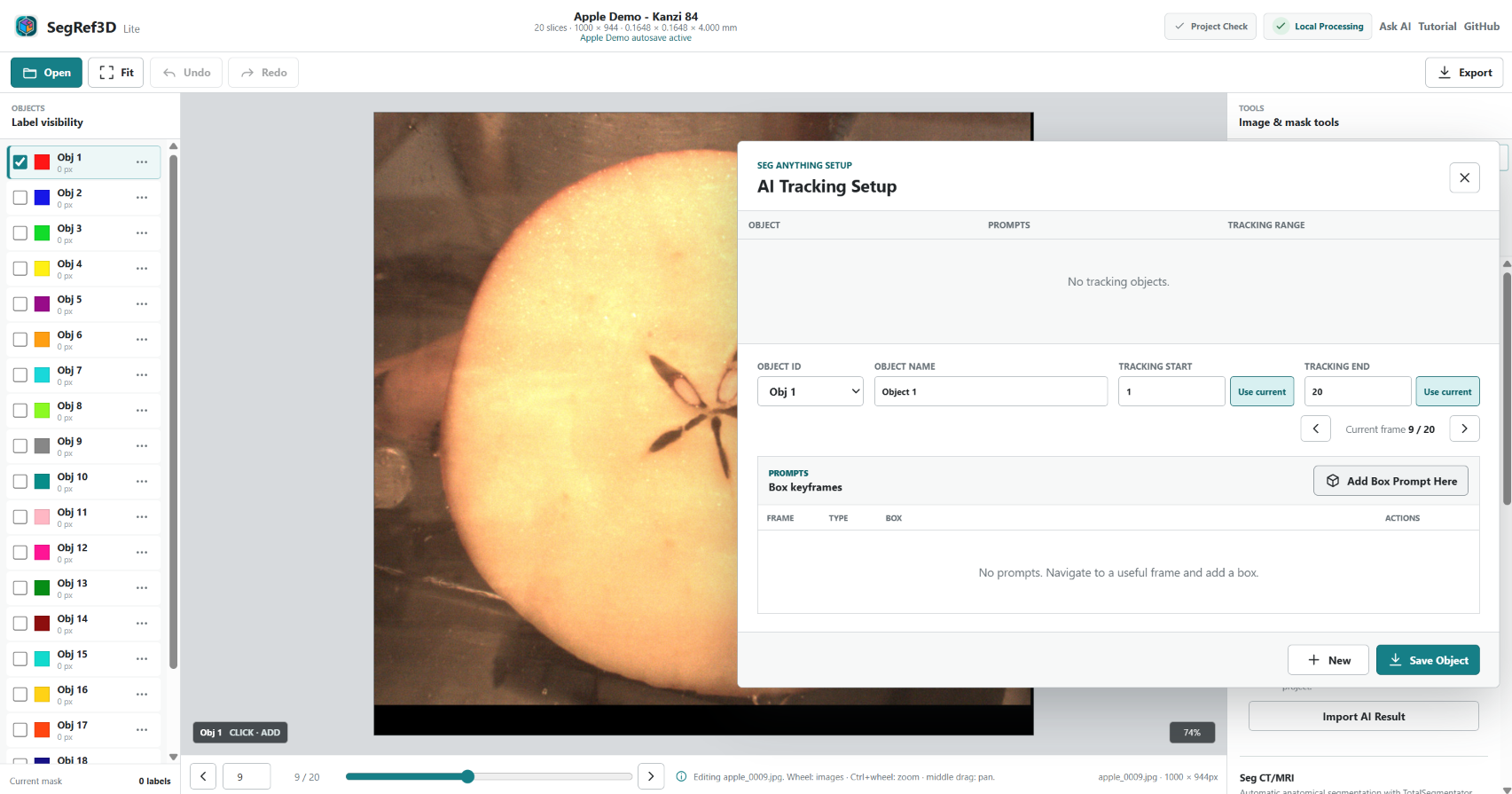
A Tracking Range is the first and last slice on which the structure should be tracked. Keep the dialog open while navigating with its frame buttons, the mouse wheel, or F/R, then select Use current beside Tracking start or Tracking end. A Box Prompt frame must be inside its Tracking Range.
Some provided screenshots show the default names
Object 1andObject 2. For this tutorial, replace theObject namevalues withApple,Stem, andCore. The object IDs and display colors do not change.
5. Register Obj 1 = Apple
- Set
Object IDtoObj 1andObject nametoApple. - Move to a slice where the whole apple boundary is clear.
- Inspect the sequence and set
Tracking startandTracking endto the first and last slices containing the apple. - Select
Add Box Prompt Here. - Click two opposite corners of a box that contains the whole apple.
- Select
Save Object.
The box does not need to touch the boundary tightly. Make sure the full target is inside it.
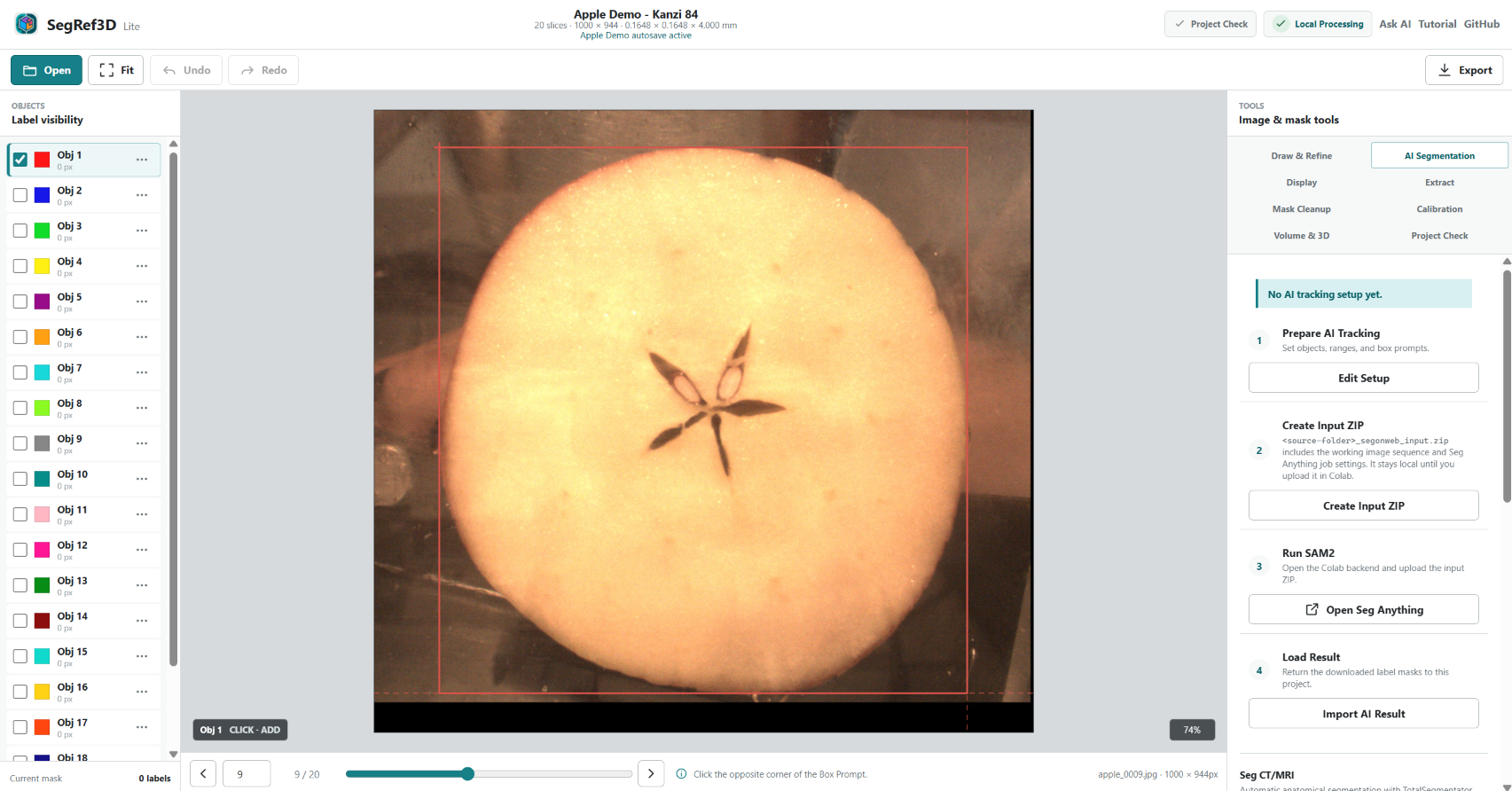
After saving, the upper table shows Obj 1, its prompt count, and its Tracking Range.
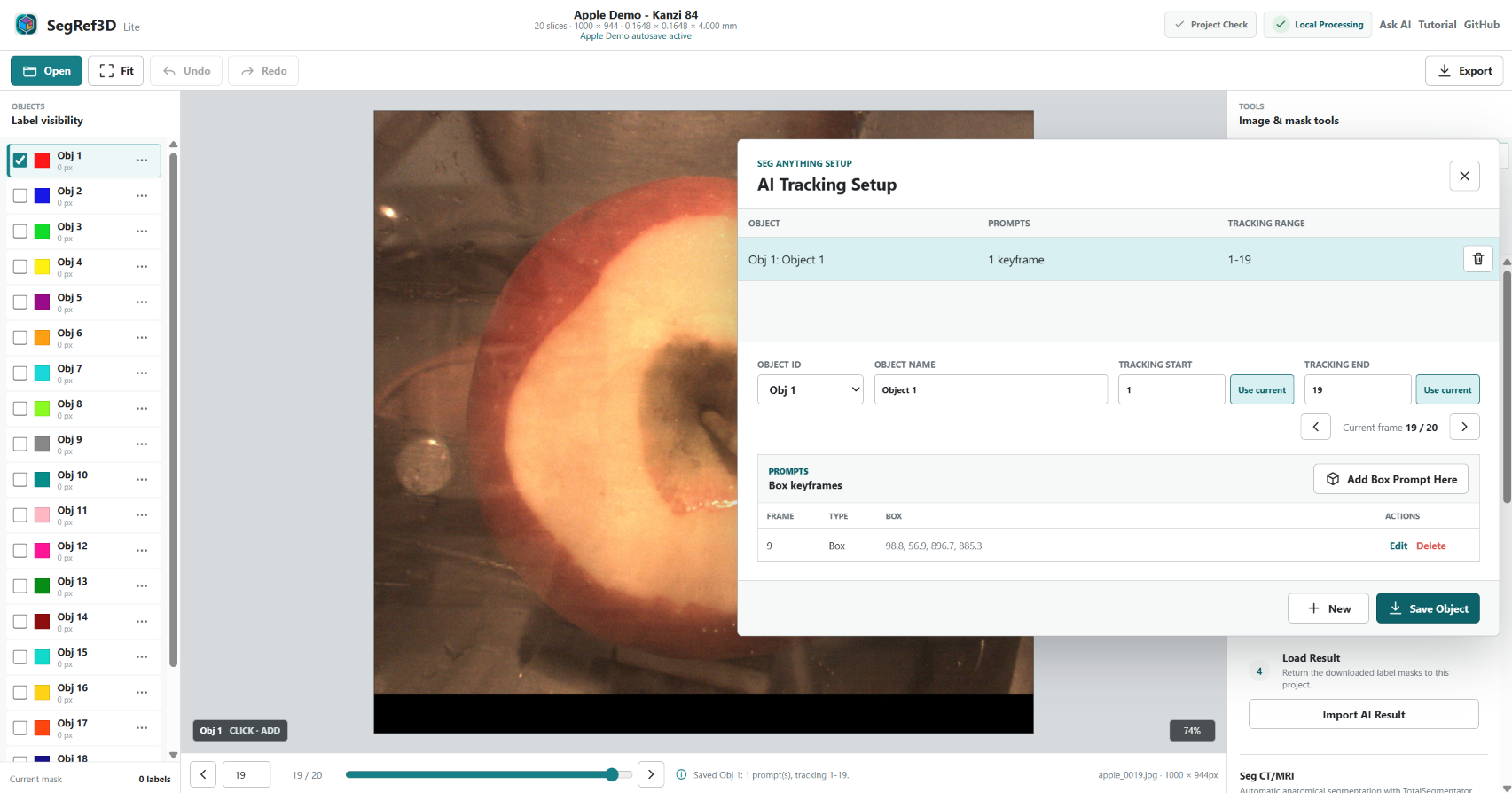
6. Register Obj 2 = Stem
- Select
New. SegRef3D chooses the next unused ID,Obj 2. - Set
Object nametoStem. - Move to a slice where the stem is clear.
- Set
Tracking startandTracking endto the slices containing the stem. - Select
Add Box Prompt Hereand enclose the whole stem. - Select
Save Object.
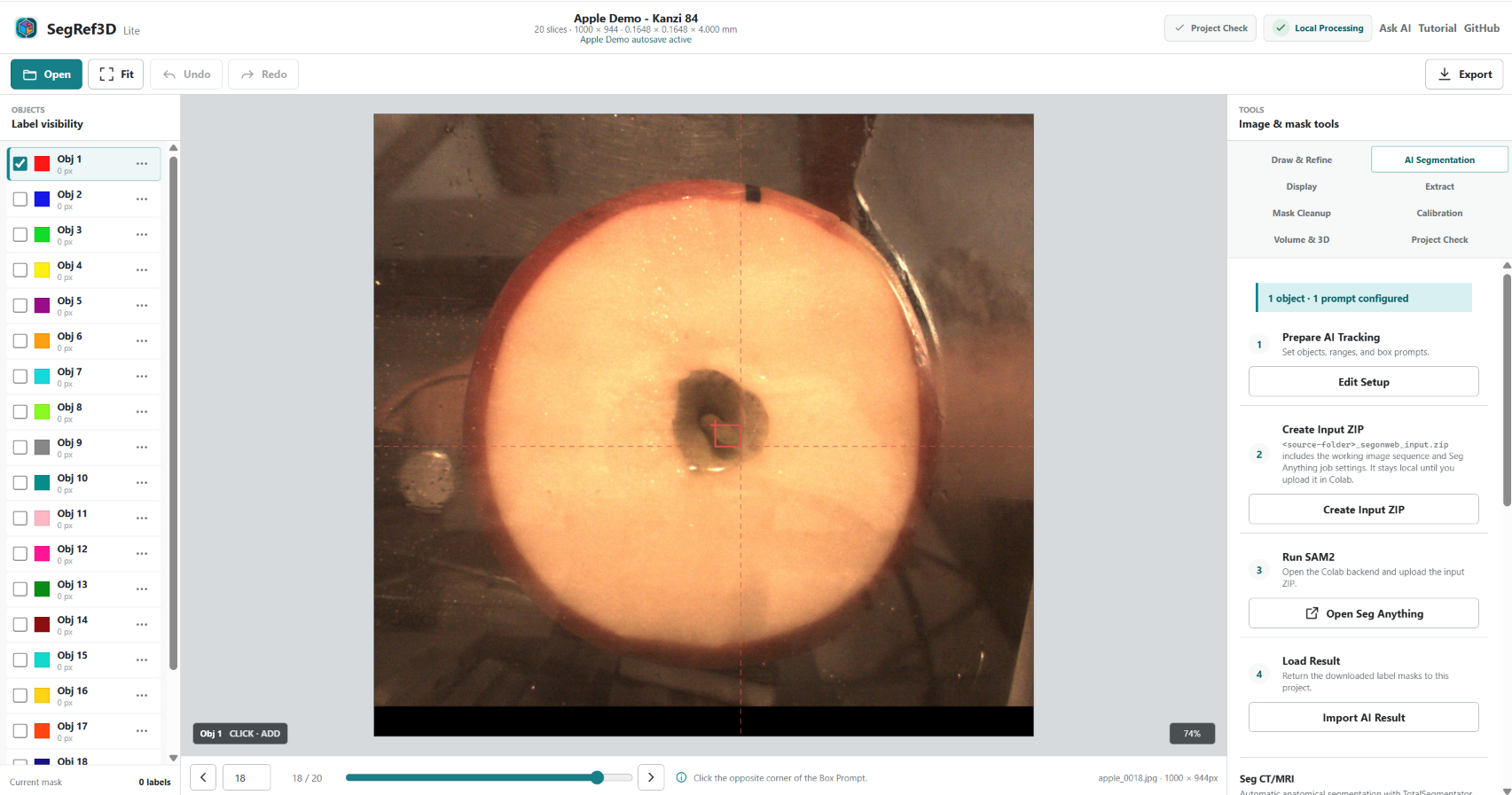
7. Register Obj 3 = Core and review the job
- Select
Newagain to createObj 3. - Set
Object nametoCore. - Move to a slice where the star-shaped core is clear.
- Set the slice range containing the Core.
- Enclose the full Core with
Add Box Prompt Here, then selectSave Object.
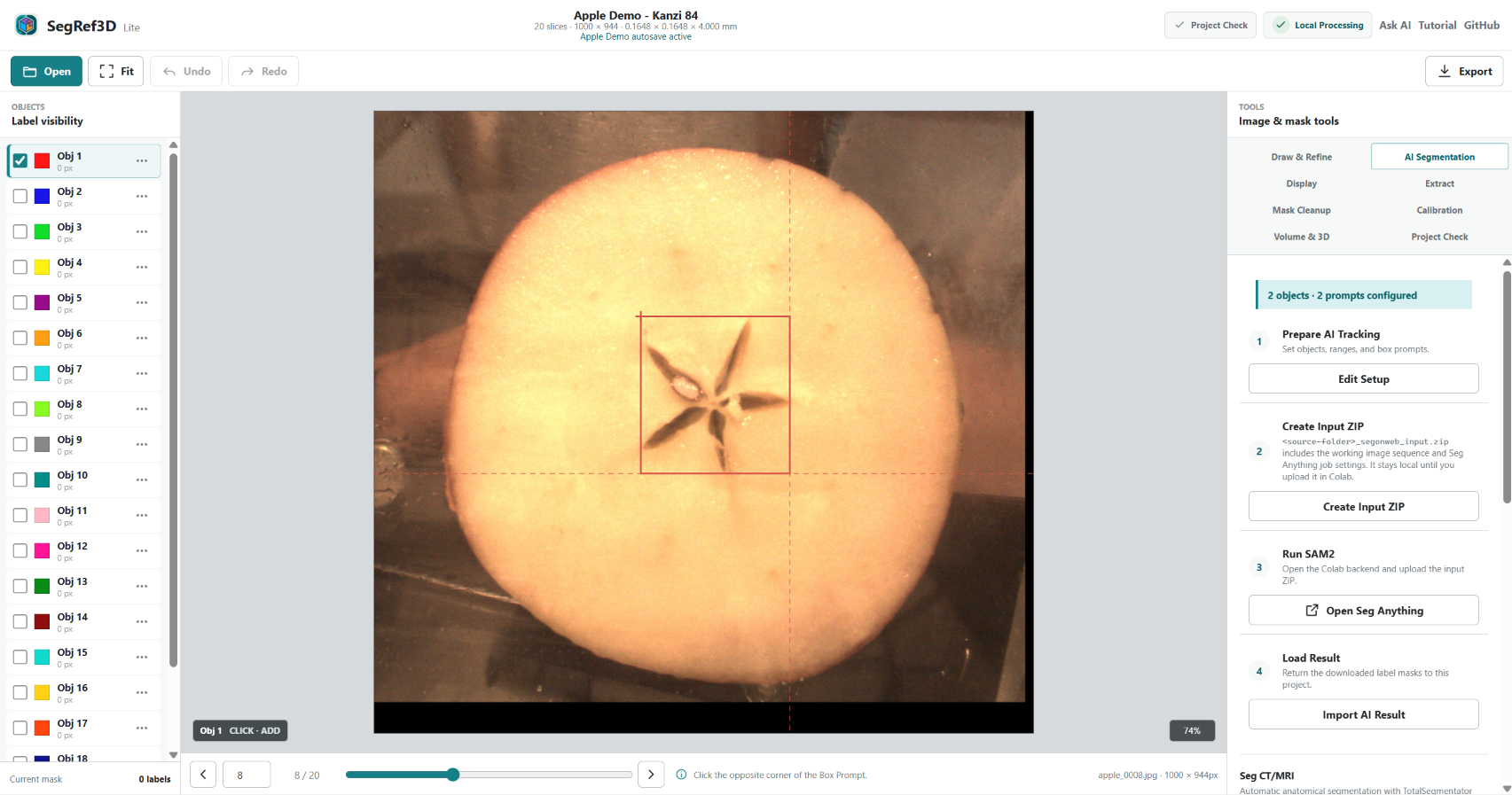
When the workflow summary reads 3 objects · 3 prompts configured, the job is ready for Colab. Reopen Edit Setup if you need to review each prompt and Tracking Range.
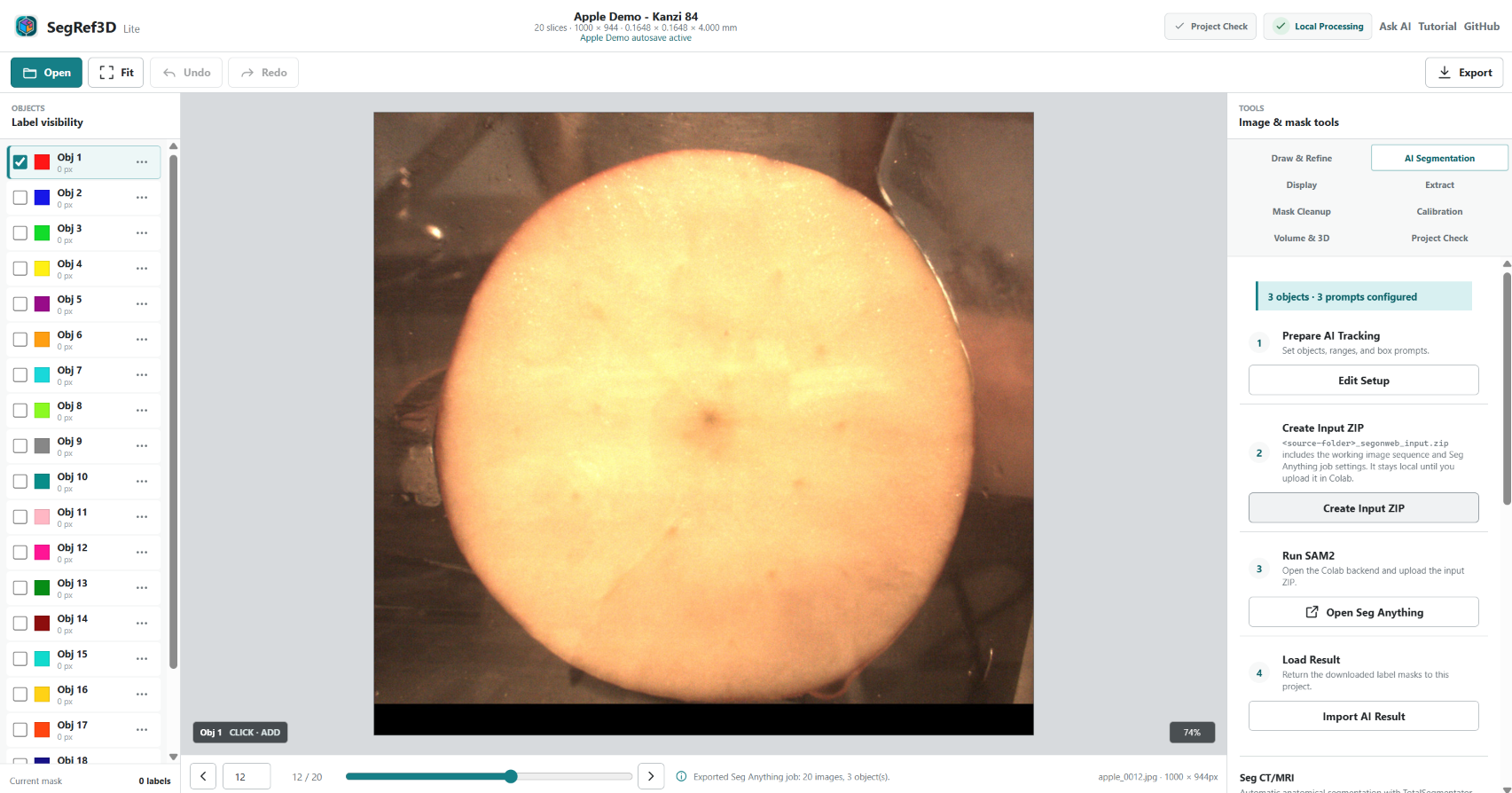
8. Create Input ZIP
Close AI Tracking Setup and select Create Input ZIP in the SegAnything workflow. The Apple Demo downloads:
Apple Demo - Kanzi 84_seganything_request.zip
This ZIP contains the 20 working images and the Apple, Stem, and Core Box Prompts and Tracking Ranges. Creating the ZIP does not upload it anywhere.
9. Run SegAnything in Google Colab
9-1. Open Colab
Select Open SegAnything. Read the Google Colab notice and, if you wish to continue, select Continue to SegAnything. You can also open SegAnything directly.
9-2. Select a GPU runtime
In Colab, open Runtime → Change runtime type, select T4 GPU as the hardware accelerator, and save. Another assigned NVIDIA GPU can also be used.
9-3. Run all cells and upload the Input ZIP
Choose Runtime → Run all. When the file upload control appears in the first executable cell, select the *_seganything_request.zip created above.
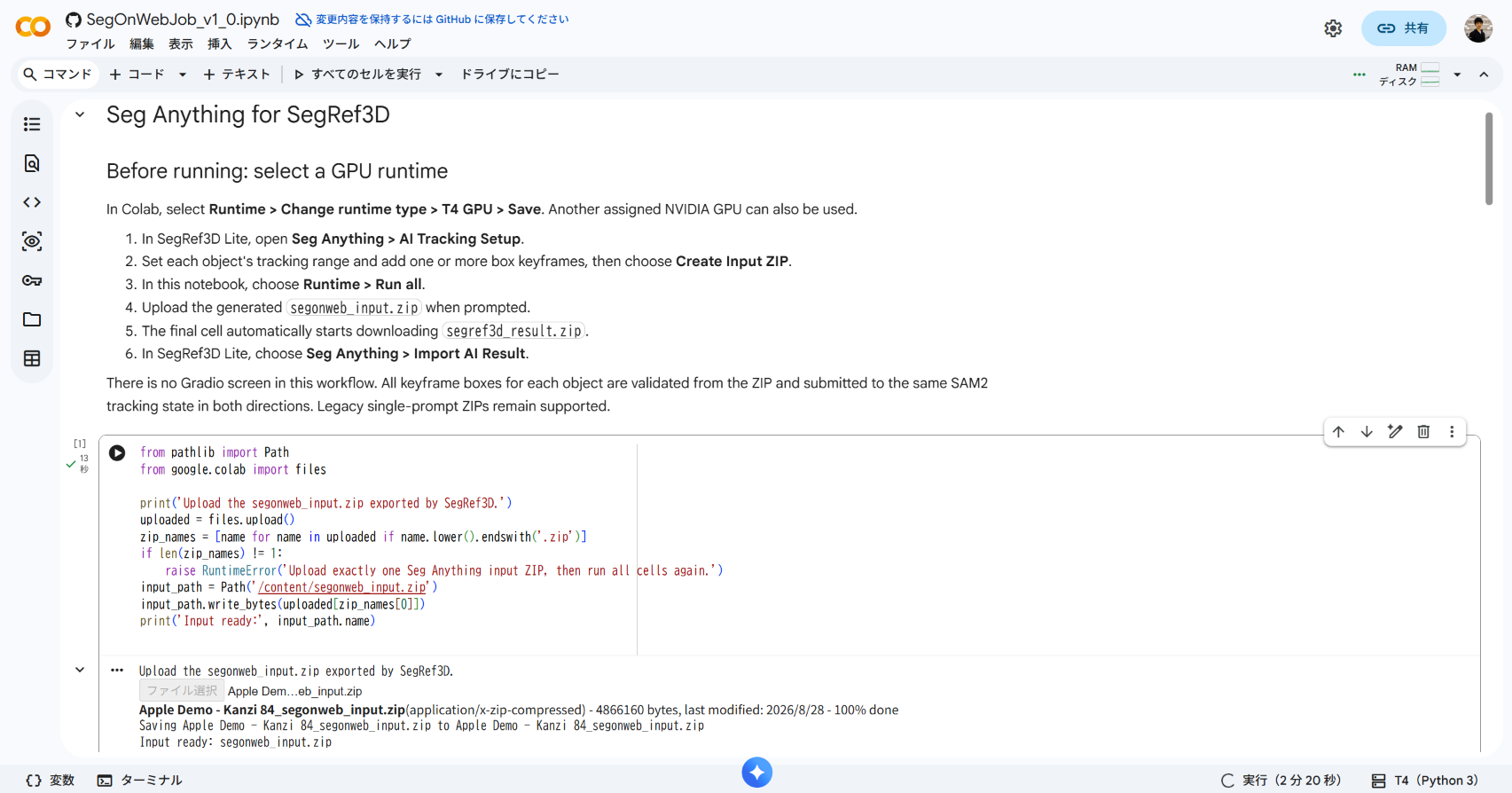
The notebook prepares SAM2 and tracks the three objects in sequence. Processing commonly takes several minutes, but the time varies with Colab load, the assigned GPU, and the runtime. Leave the notebook open while it runs.
When Segmentation complete appears, the final cell automatically starts downloading seganything_result.zip. If the download does not start, run only the final download cell again.
Data handling: Normal SegRef3D Lite operations run on your device. SegAnything is different: you explicitly upload the Input ZIP containing the working images to your own Google Colab runtime. Confirm that this is permitted by your institution’s research-data and privacy policies before using research or medical data. This workflow does not upload images to a SegRef3D-operated server.
10. Return the AI Result and refine the masks
10-1. Import the Result ZIP
Return to SegRef3D Lite, select Import AI Result in the SegAnything workflow, and choose seganything_result.zip. If the project already contains masks, SegRef3D asks before replacing the current label masks.
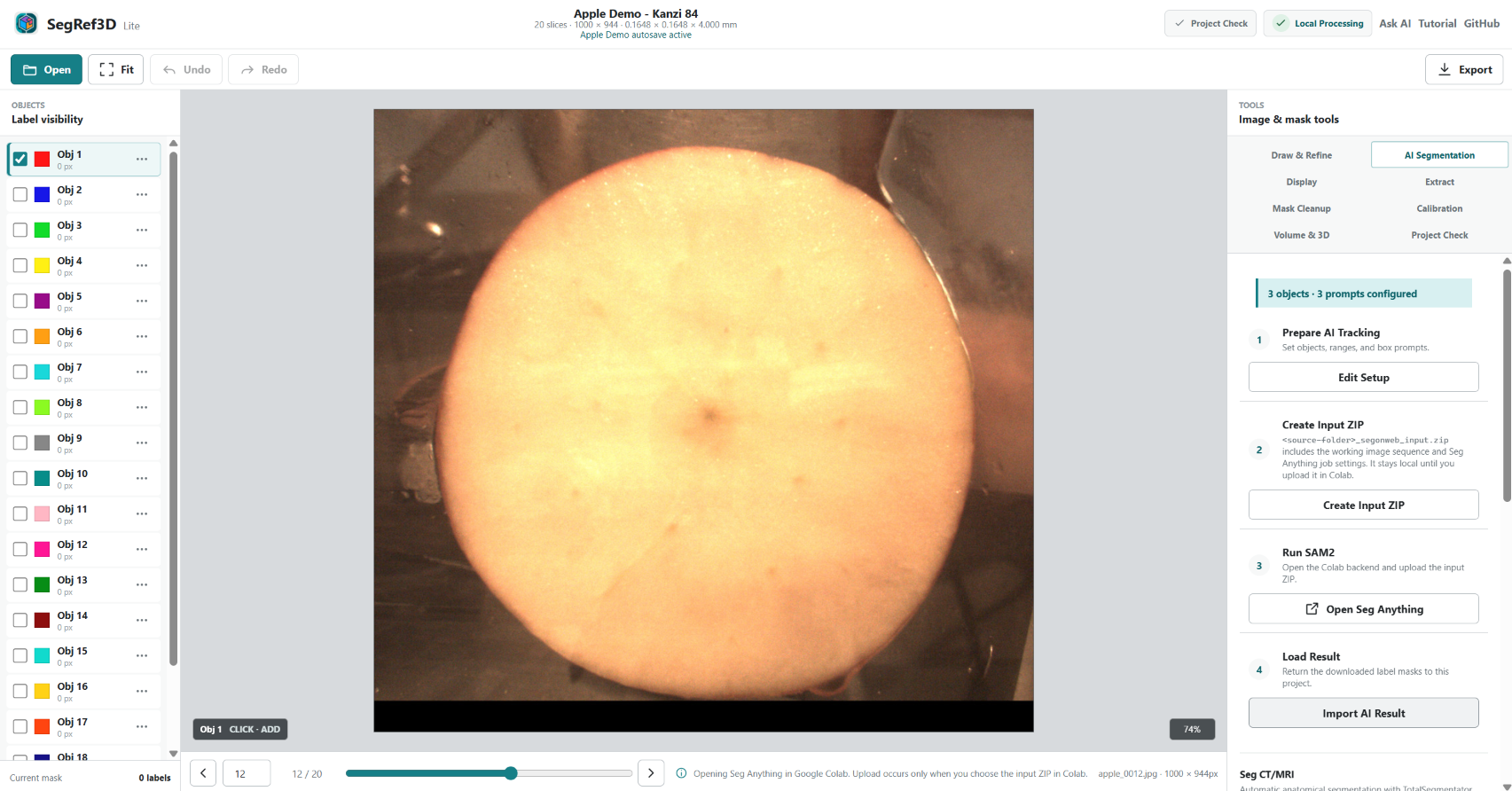
After import, the Apple, Stem, and Core masks and object names appear in the Objects panel.
10-2. Add a missing region
- Open
Draw & Refine. - Select the object to edit in the Objects panel.
- Choose the
Clickdraw mode. - Set
AutotoAdd. - Left-click around the missing region, then right-click the final point.
The right-clicked point becomes the endpoint, joins the start, and applies the enclosed region to the current slice.
| Outline an Add region | After Add |
|---|---|
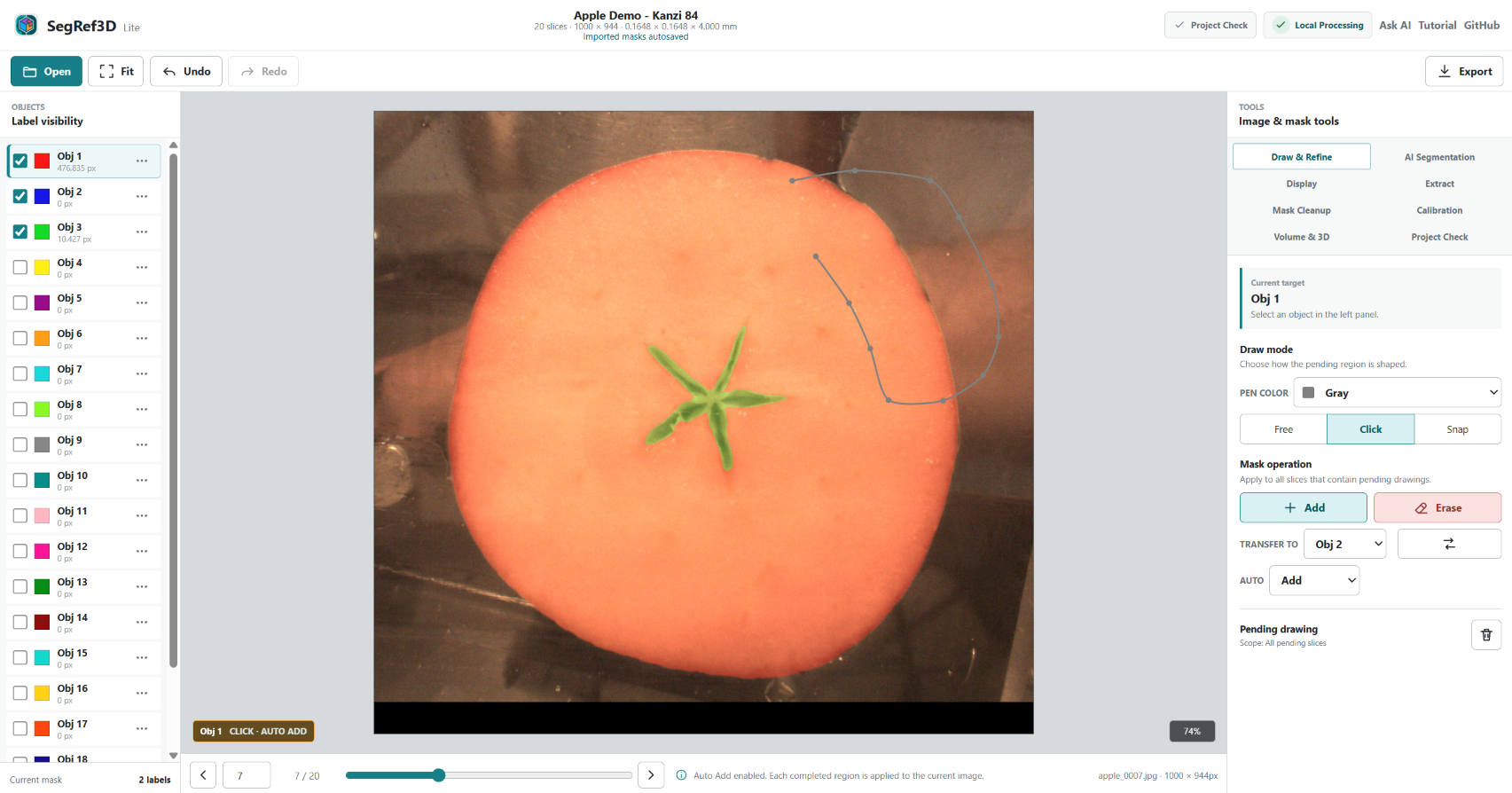 |
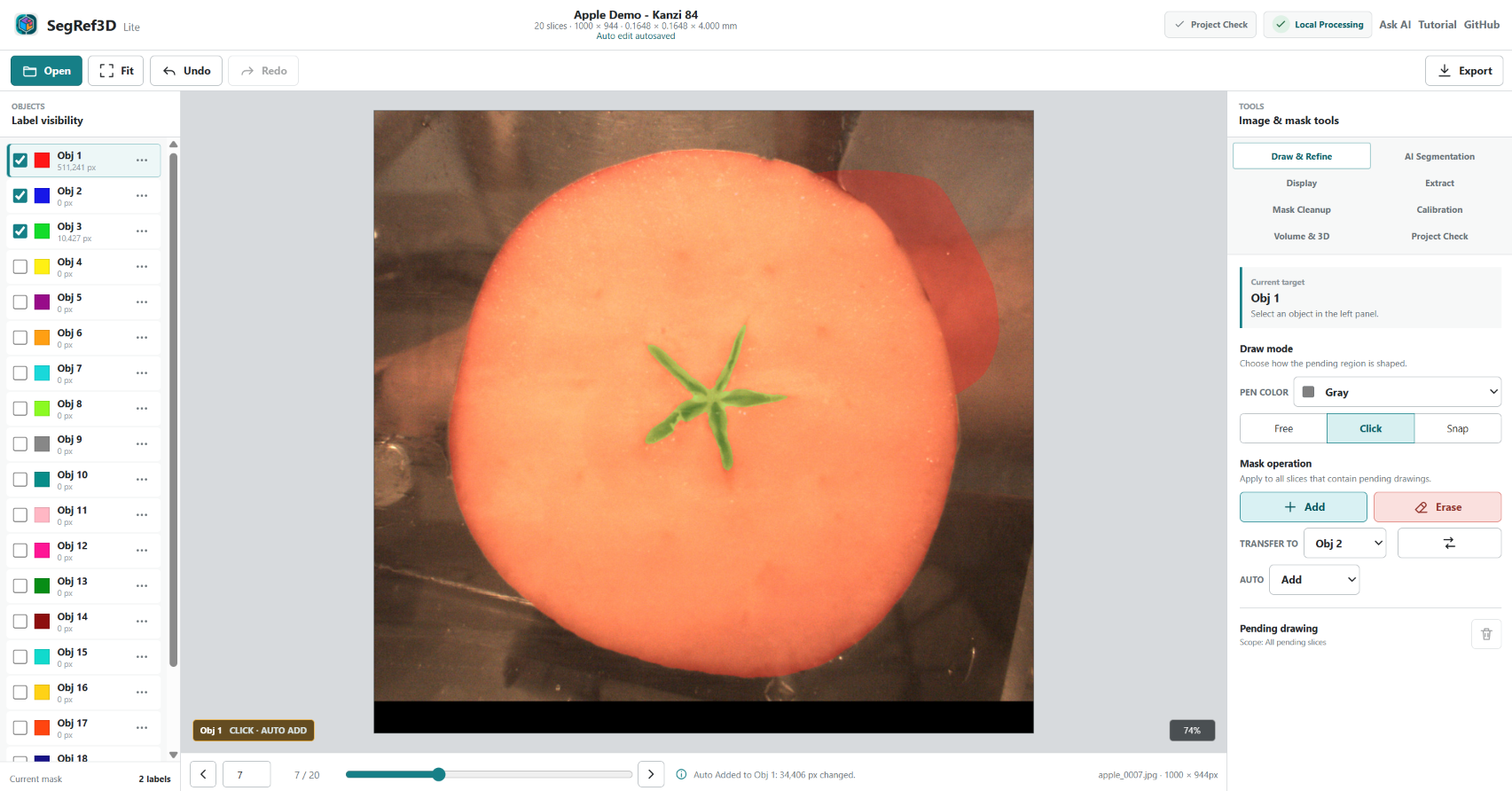 |
10-3. Erase an unwanted region
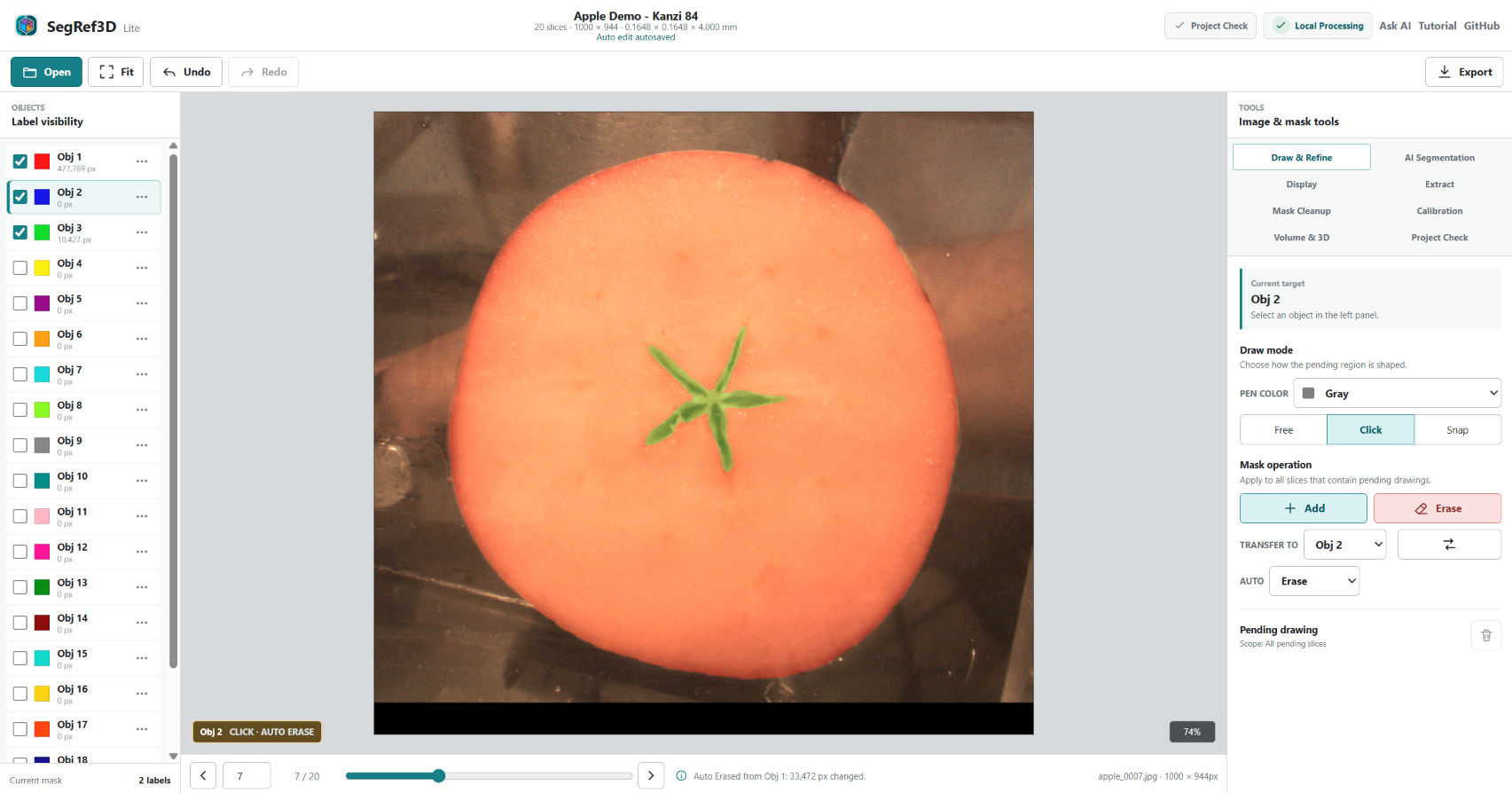
Set Auto to Erase, left-click around the unwanted area, and right-click the final point. The enclosed region is removed from the current slice.
| Outline an Erase region | After Erase |
|---|---|
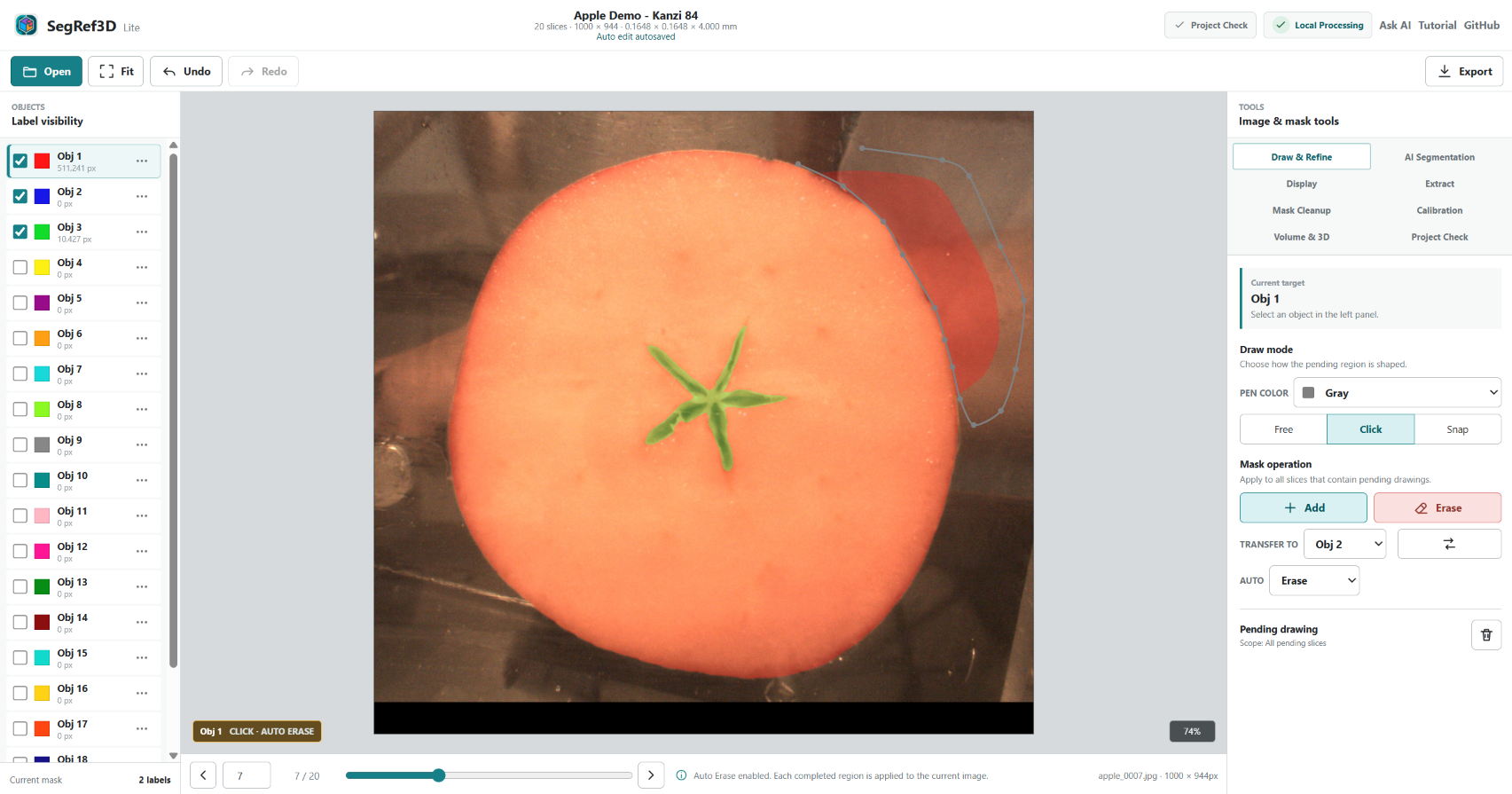 |
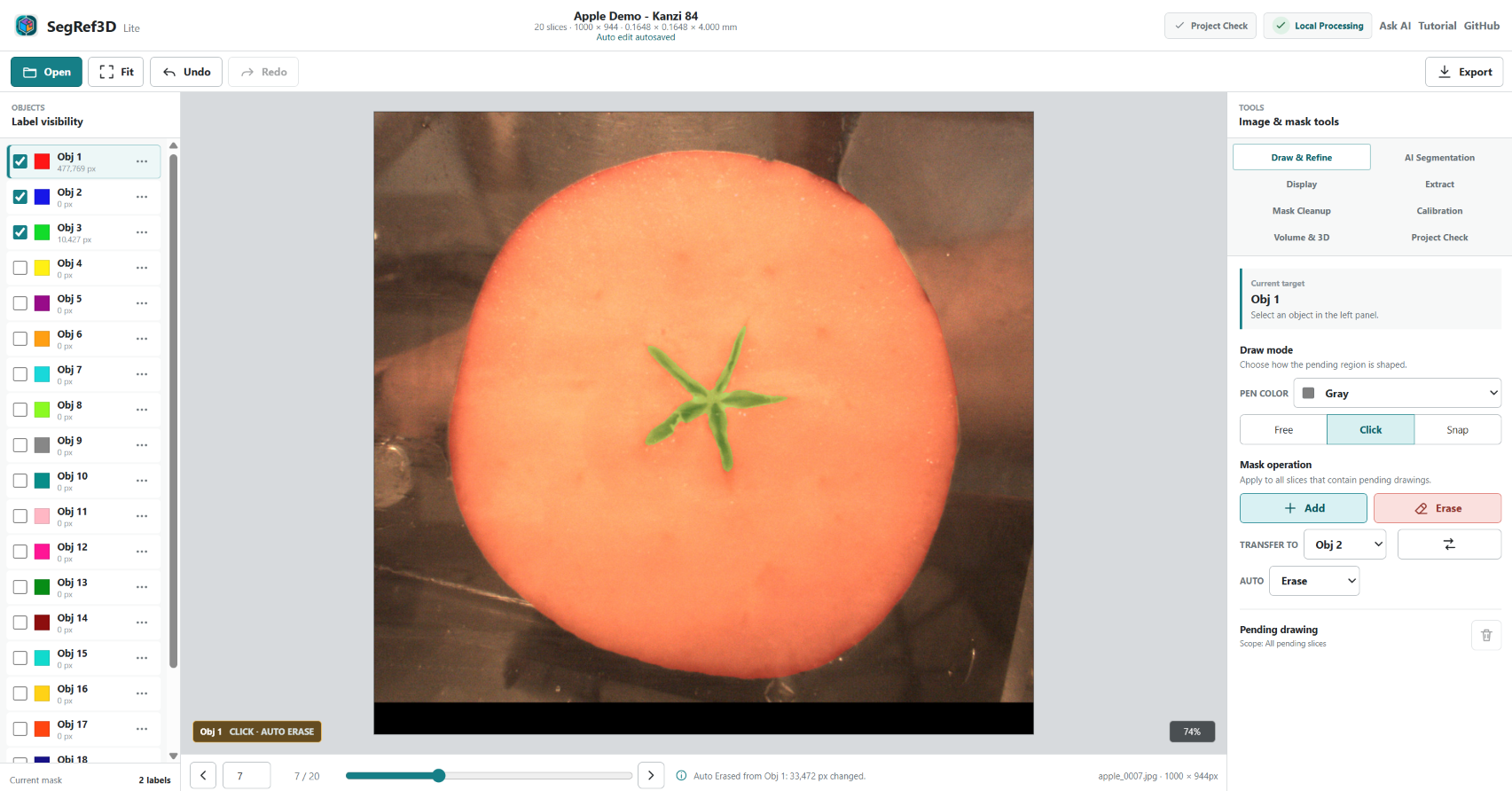 |
This is the central SegRef3D workflow: AI creates most of the segmentation, and the researcher reviews and corrects the parts that need attention.
10-4. Switch objects
Select Obj 1: Apple, Obj 2: Stem, or Obj 3: Core in the Objects panel to change the editing target. The checkbox at the left controls visibility. Each object can be inspected and refined independently on the same image sequence.
11. Choose an export
| Goal | Export |
|---|---|
| Use multiple objects as 3D surfaces | STL |
| Resume later in SegRef3D Lite | Project ZIP |
| Save image + mask for future custom-model training | Training Data ZIP |
| Send a label volume to 3D Slicer or similar software | NIfTI Labelmap |
| Save mask images | Label PNG or TIFF |
| Save object volume values | Volume Statistics CSV |
11-1. Preview Apple, Stem, and Core in 3D
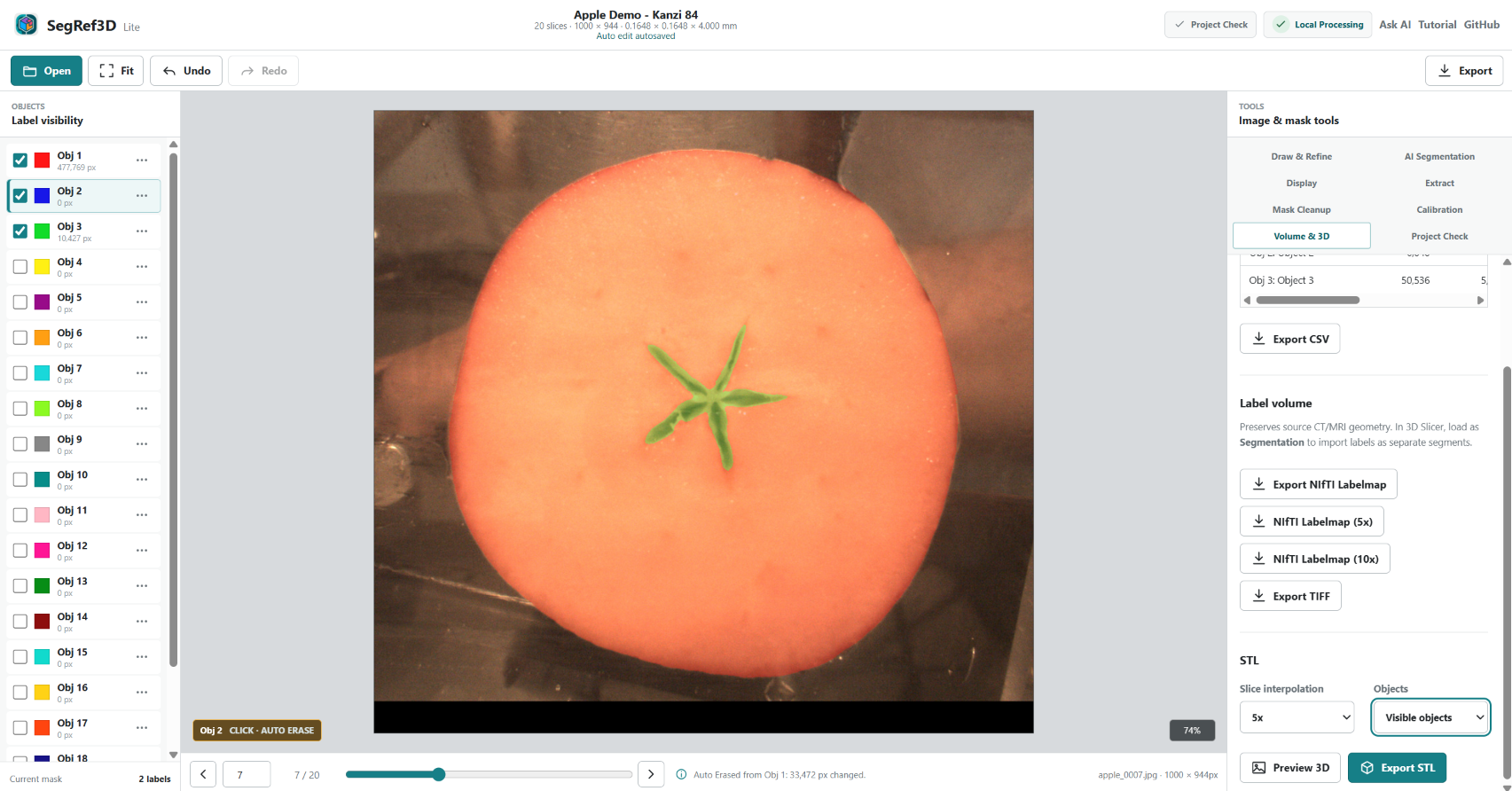
- Enable visibility for Apple, Stem, and Core in the Objects panel.
- Open
Volume & 3DunderImage & mask tools. - Set STL
Slice interpolationto5x. - Set
ObjectstoVisible objects. - Select
Preview 3D.
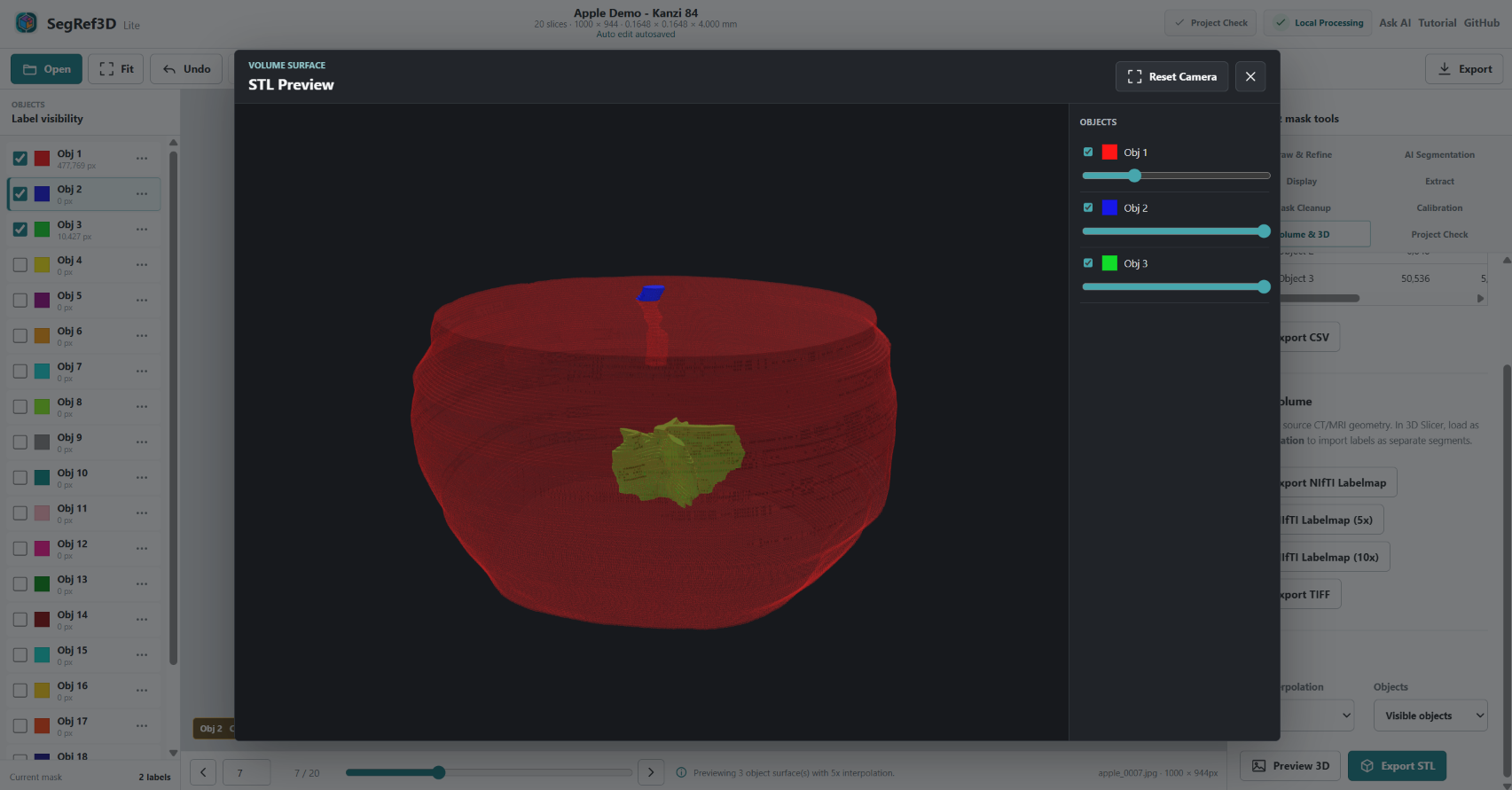
In the 3D Preview, drag to rotate and use the mouse wheel to zoom. The sliders at the right control each object’s opacity. Reducing the Apple opacity makes the spatial relationship of the Stem and Core easier to inspect.
11-2. Export STL
Close the preview, keep Objects = Visible objects, and select Export STL.
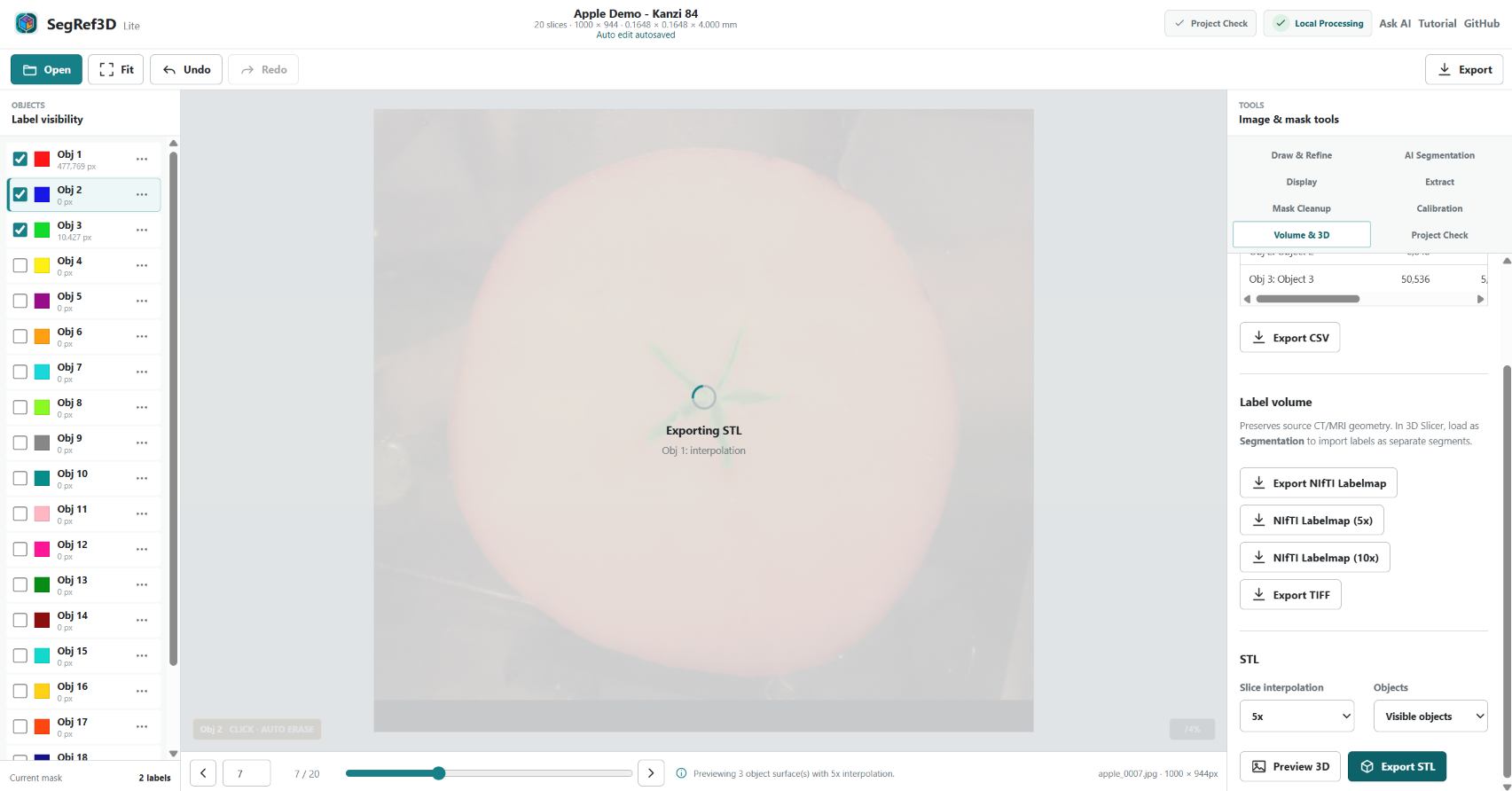
For multiple objects, SegRef3D downloads Apple Demo - Kanzi 84_STL_5x_<timestamp>.zip. The ZIP contains separate STL files for Obj 1, Obj 2, and Obj 3. STL is a surface-model format for 3D viewers, CAD, and 3D-printing workflows.
11-3. Finish by saving a Project ZIP
Choose Export → Project ZIP in the top bar.
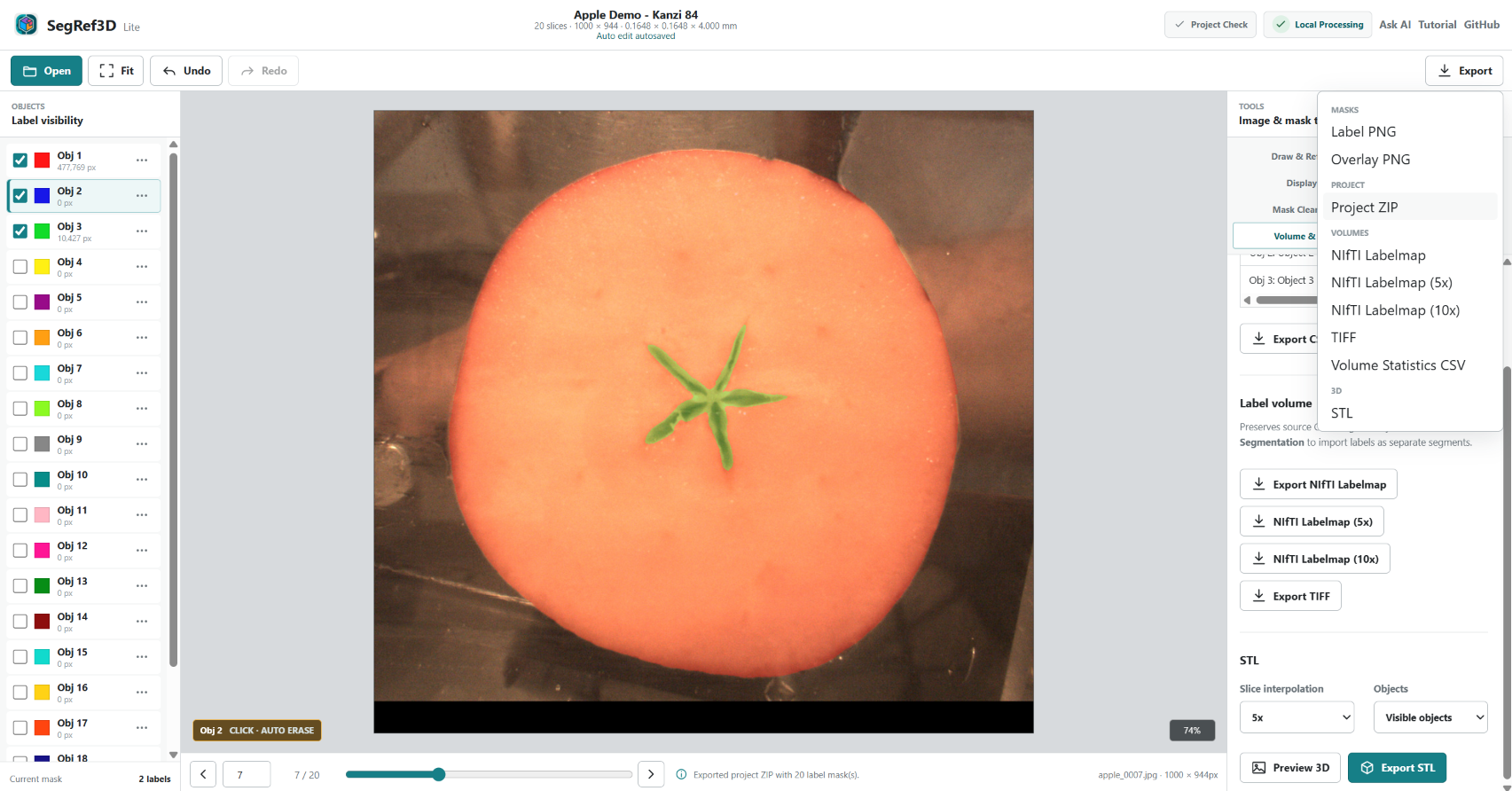
Apple Demo - Kanzi 84_SegRef3D_Project_<timestamp>.zip stores label masks, calibration, object names, display settings, and the SegAnything setup. It does not include the source images.
To resume, first select Load Apple Demo, then use Load Masks → Replace → ZIP / Project ZIP to open the saved ZIP. Browser autosave is helpful, but finish the session by saving a Project ZIP as a portable work record.
11-4. Save a training case
After finishing segmentation review, choose Export → Training Data ZIP. SegRef3D Lite saves one case containing geometry-matched image channel(s), a labelmap that preserves the current Obj IDs, and manifest.json with geometry and privacy policy. RGB sources such as the Apple Demo produce separate R/G/B channels; scalar or grayscale sources produce one channel.
Generation is browser-local and does not upload data to a SegRef3D server. DICOM headers are excluded, but burned-in text, facial or unique anatomy, and user-entered object names may still identify someone. Do not treat the Training ZIP as anonymized. SegRef3D Lite does not yet train a model; this ZIP is a versioned case format for future custom-model training.
11-5. Import a Custom Model prediction
Open AI Segmentation → Custom Model. To create a new Inference Request ZIP, select a compatible TrainRef3D Model ZIP first. Upload the Model and Request ZIPs to InferRef3D to run inference.
To import an existing InferRef3D Result ZIP, load the original source volume and choose Import Prediction ZIP. You do not need to re-select the Model ZIP. Review the prediction’s target Obj/name, Model ID and confirmed source/geometry matches, then import. The Result ZIP determines the target Obj; the currently selected Obj does not change this mapping. If the target already has a mask, choose Replace or Merge. Both protect other Obj labels, report skipped overlaps and support one-step Undo. Default object names can adopt the result target name; custom names remain unchanged.
If a Model ZIP is loaded, Lite also compares model provenance. A model mismatch shows a warning that you can accept or cancel. Source fingerprint or geometry mismatches always block import.
12. Other useful tools
SegRef3D Lite also provides Threshold/RGB extraction, Mask Cleanup, mask interpolation, NIfTI Labelmap, TIFF, Label PNG, Overlay PNG, and Volume Statistics CSV. This getting-started tutorial focuses on the AI workflow. See the SegRef3D Lite documentation and the detailed SegAnything guide for additional options and troubleshooting.
13. What you learned
- Loaded a serial image sequence in SegRef3D Lite
- Calibrated image scale and Z spacing
- Defined Apple, Stem, and Core as separate objects with Box Prompts
- Ran SAM2 segmentation on a Google Colab GPU
- Imported the AI masks back into SegRef3D Lite
- Refined masks with Add and Erase
- Switched among three independently editable objects
- Previewed Apple, Stem, and Core together in 3D
- Exported separate object surfaces as STL
- Saved a Project ZIP
You have completed the core SegRef3D Lite workflow: define targets → AI segmentation → human refinement → quantitative 3D output.
14. Demo data
Apple Demo images are adapted from: Schut DE, Trull AK, Couvée M. Dataset of CT scans, slice photographs, and visual browning scores of 120 ‘Kanzi’ apples. Zenodo. https://doi.org/10.5281/zenodo.8167285
Source dataset license: CC BY 4.0. Images were selected, cropped, resized to 1000 × 944 pixels, and JPEG-compressed for the SegRef3D demo. The original data providers do not endorse SegRef3D.